
Embed "Ask AI" as a chatbot on any page
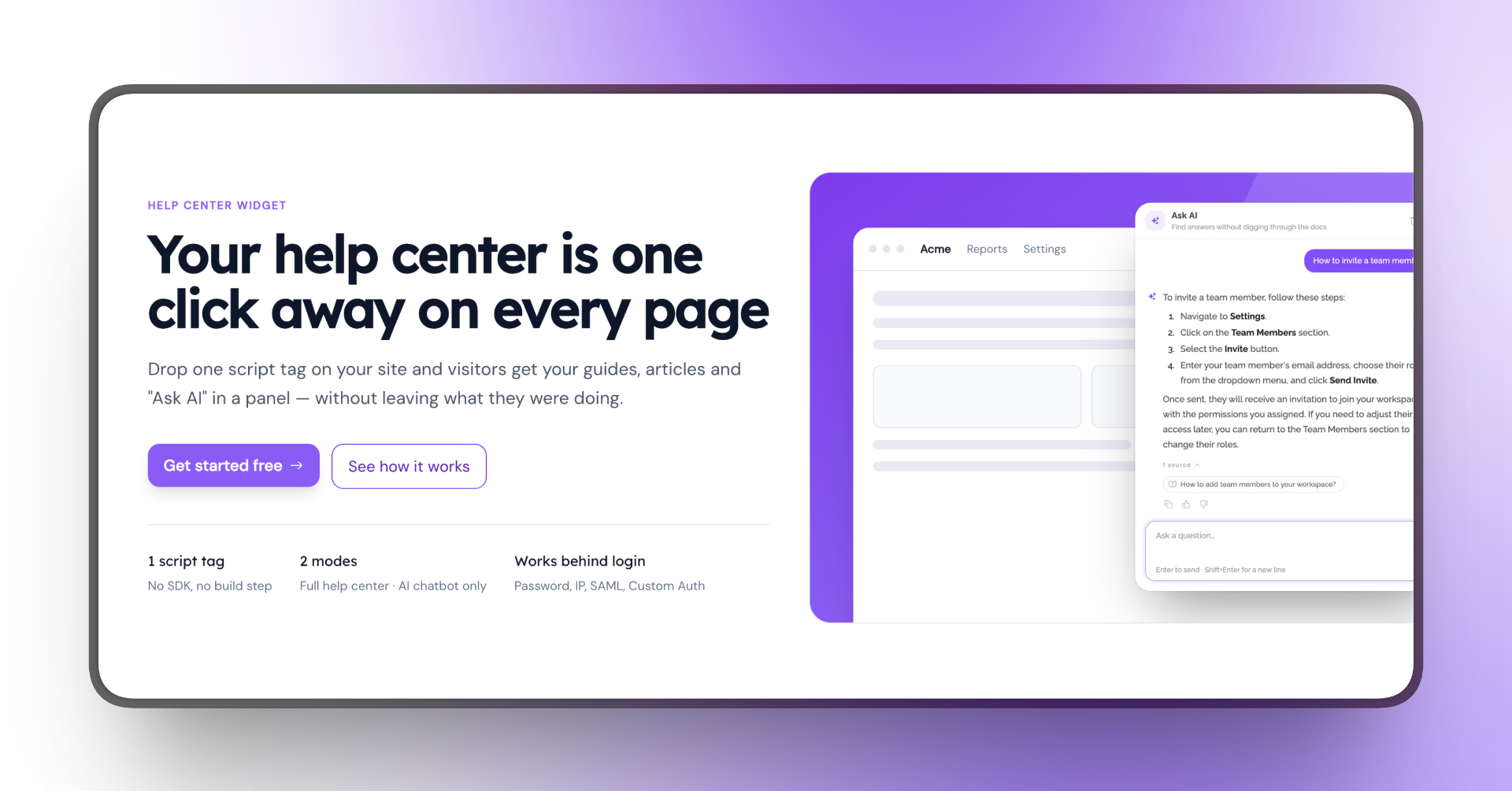
You can now embed just the AI chatbot from your help center, without the rest of the help center.
Drop a single script tag on your website or app and visitors get an AI chatbot widget that answers from your guides and articles. It can answer in your voice, cites the guides it used, and only answers from your content.
You can set the welcome headline, description and suggested questions, and bring your own OpenAI or Anthropic key or just use ours.
To set it up, go to Help Center → Widget in your dashboard, choose "AI chatbot" mode and copy the snippet. Changes to your help center show up in the widget automatically.
Ask AI is available on Business and Enterprise plans.
Chrome extension v2.5.1: your dashboard is now a remote control 🧩
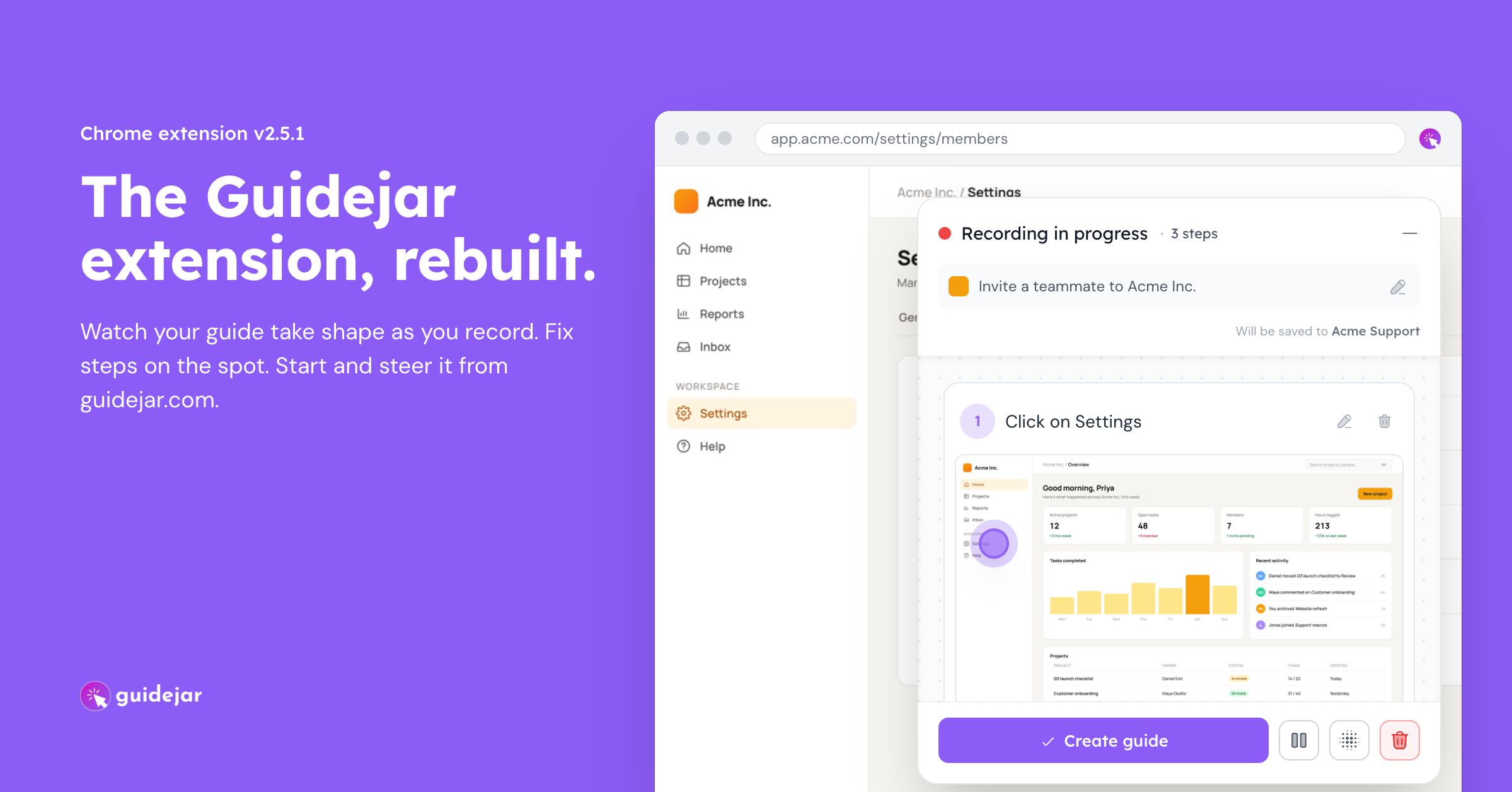
Until now the extension and the web app didn't really talk to each other. You recorded in one, then went to the other to clean up. v2.5.1 joins them up, and while we were at it we rebuilt the extension so that for most guides you barely need the editor at all: record, edit as you go, press stop, share the guide.
Start and steer recordings from your dashboardClick Record a guide on the dashboard, pick any open tab or paste a URL, and the extension starts recording there. From then on the dashboard shows the same recording the extension does: steps as they land, the title, the count. Pause, rename, edit steps or finish from whichever side you happen to be looking at.
See the guide while you're recording itThe new recording panel shows every step as it lands: the numbered instruction, the screenshot, and the hotspot in your workspace's style and color. What you see in the panel is what the guide will look like.
Fix a step without stoppingReword an instruction, remove a stray click, rename the guide, or blur something sensitive, all while the recording is still running. Whatever you change is what gets saved, so most guides go straight from recording to a shareable link without you ever opening the editor.
Guidejar asks before it follows you into another tabGuides often span more than one tab, so the recording follows you. The tab you switch to out of habit shouldn't end up in the guide, though. Now, when you land on a new tab mid-recording, Guidejar asks whether to add it before capturing anything there. Say no and a quiet marker stays on that tab so you always know it isn't being recorded.
How to get the new extension?Chrome updates extensions on its own within a few hours. To check, open the extension, go to Settings and look for version 2.5.1. Haven't tried our extension yet? Install it from the Chrome Web Store. It works in Chrome, Edge, Brave, Arc, Opera and other Chromium browsers.
Give it a try on your next guide, and tell us what you think!
Got Screenshots? That's a Guide 📜
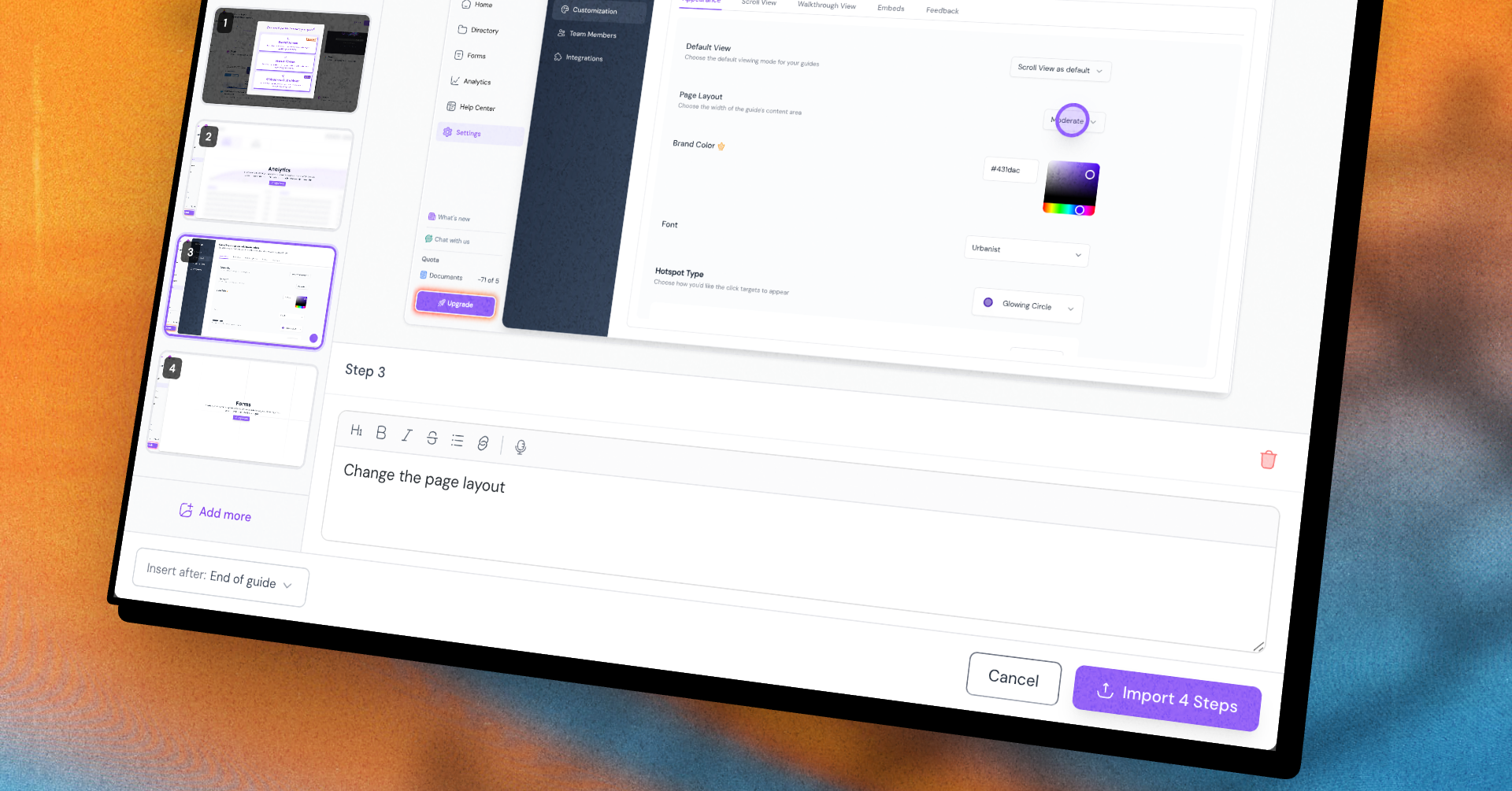
You've got a folder full of screenshots. Someone sent them over Slack, you grabbed a few on your phone, a designer exported the rest. There's a guide buried in there somewhere — but until now, getting it out meant recapturing every single screen from scratch.
Now you don't have to.
With Import Screenshots, you can upload a batch of images and turn them into individual steps in one go. Drop them in, and Guidejar lays them out for you to polish:
-
Write instructions for each step right there, with full rich-text formatting
-
Drop a hotspot anywhere on an image with a click
-
Drag to reorder until the flow makes sense
-
Choose where they land — at the end of your guide, or tucked in right after any existing step
Then hit import, and your screenshots become real, editable steps in your guide.
It's the fastest way to bring existing material into Guidejar — no re-recording, no starting from scratch.
Give it a try on your next guide.
Scroll View Now Plays Itself 🪄
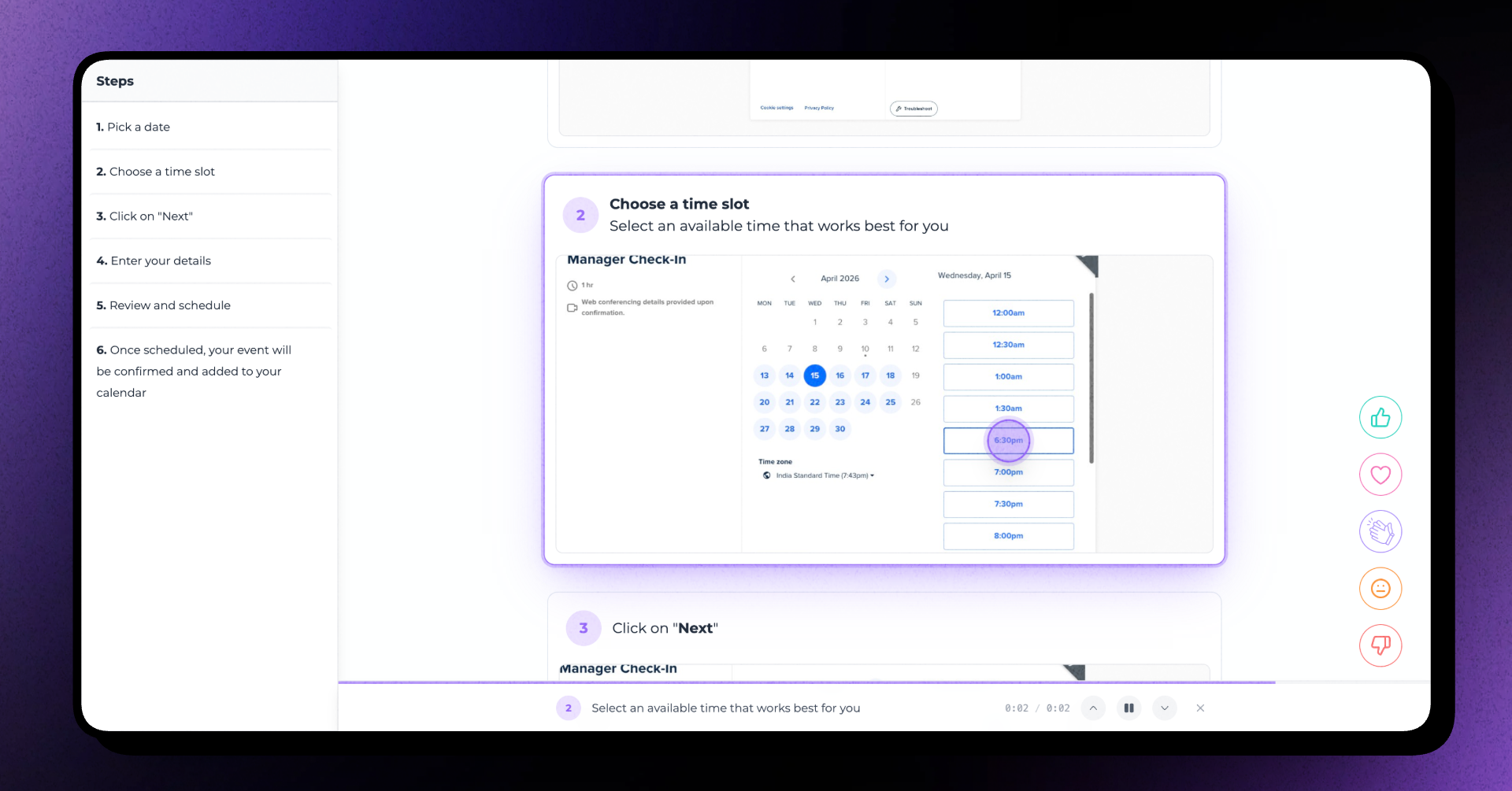
Guides in Scroll View used to just sit there — you scrolled, you read. Now they come to life.
Guidejar can now play the guide in scroll view on its own: bringing each step into focus, reading it aloud, then gliding to the next.
For your audience, it feels less like reading a document and more like being personally walked through it — each step front and center exactly when it matters, narrated in a real voice, at a pace that's easy to follow. New hires, customers, and teammates can just watch and absorb instead of working to keep up.
And they stay in control the whole time — pause, replay a step, or jump ahead whenever they like.
Keep Sensitive Info Out of Your Screenshots
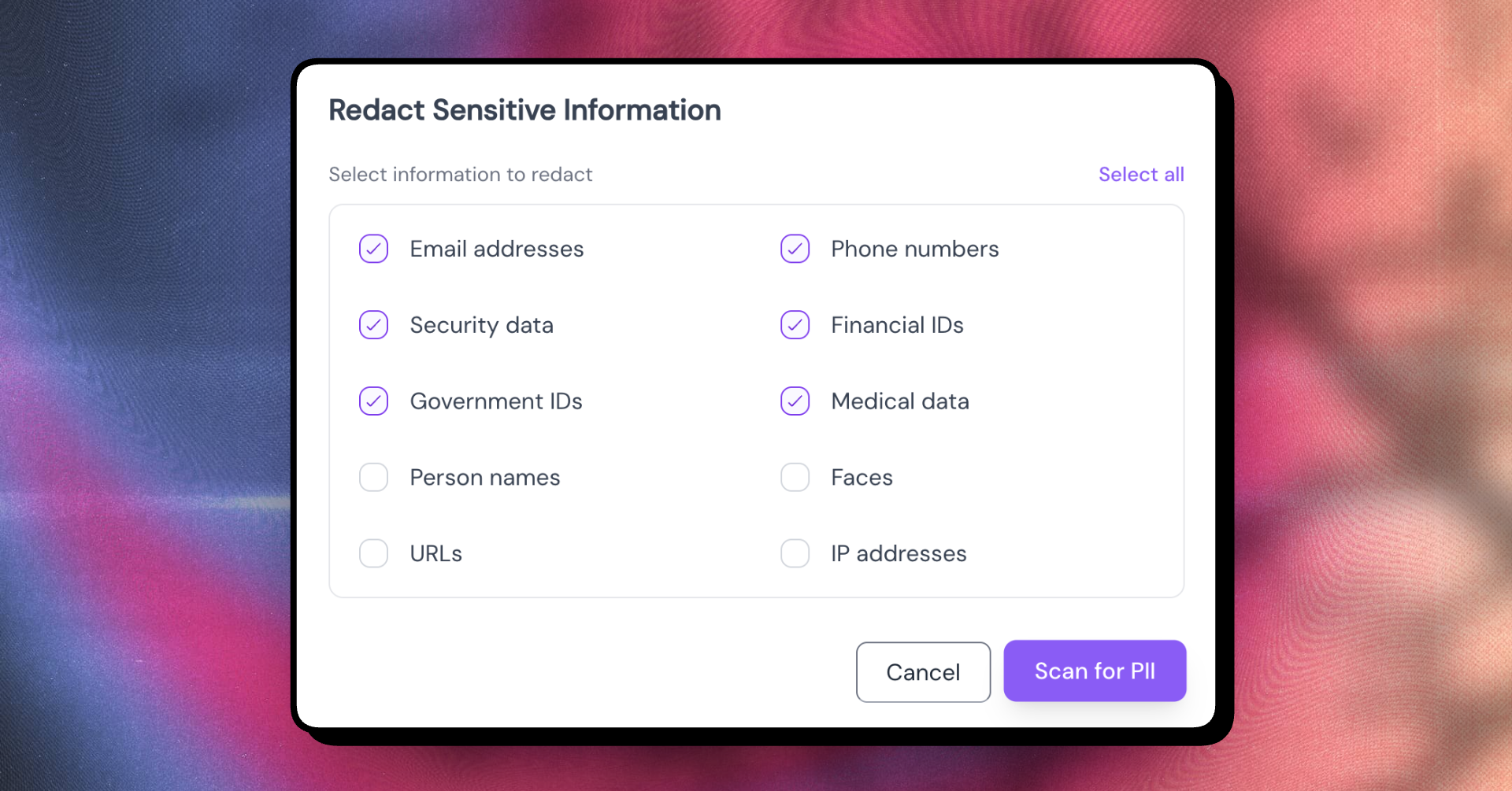
Recording a guide means recording whatever's on your screen — and sometimes that includes things you'd rather not share. A customer's email. An account number. A face in a profile picture. Until now, the fix was opening every screenshot and blurring things by hand.
Not anymore.
With PII Redaction, Guidejar can scan your screenshots and automatically blur sensitive information for you. Click the redact option on any step, pick what you want hidden, and we'll take care of the rest.
It's especially handy if you're documenting internal tools, customer-facing flows, or anything that touches real user data — your guides stay useful, your data stays private.
PII Redaction is available on the Business & Enterprise plans.
Say More Than You Show
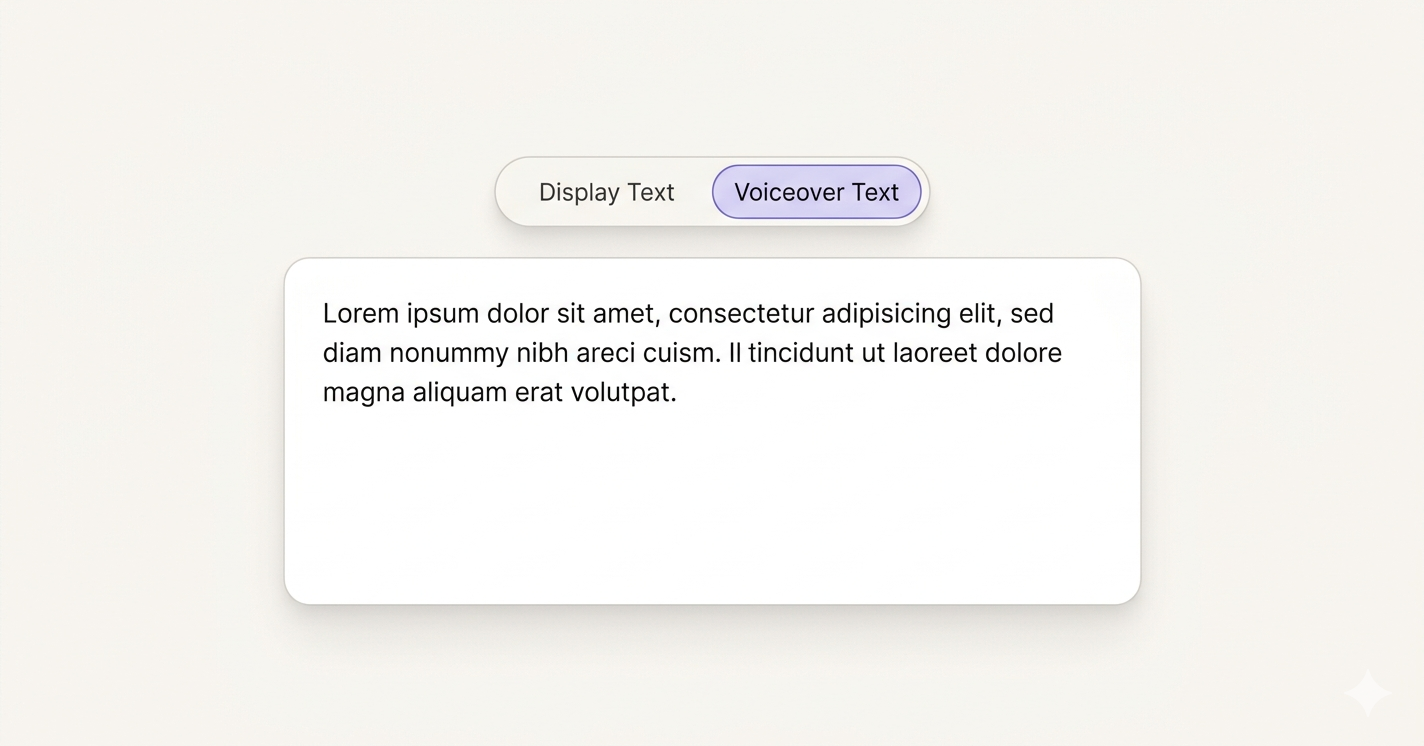
Ever wanted your voiceover to explain more than what's on screen? Now it can. Write a separate voiceover script for any step — keep your display text short, let your narration do the heavy lifting.
Switch between the two right in the step editor, and Guidejar uses the right one in the right place. Don't set a voiceover script? It just uses your display text, same as always.
Your Guides Deserve Your Voice

Your guides carry your brand, your tone, and your way of explaining things. But when AI reads them out loud, it sounds like anyone but you.
Not anymore. Voice Cloning lets you record or upload a short sample — and from that point on, your AI voiceovers sound like you. One voice, shared across your whole workspace, applied automatically to every guide.
It's a small change that makes a real difference: your guides feel a lot more like yours.
Voice Cloning is available on the Business & Enterprise plans.
Your Help Center Can Now Answer Questions Automatically
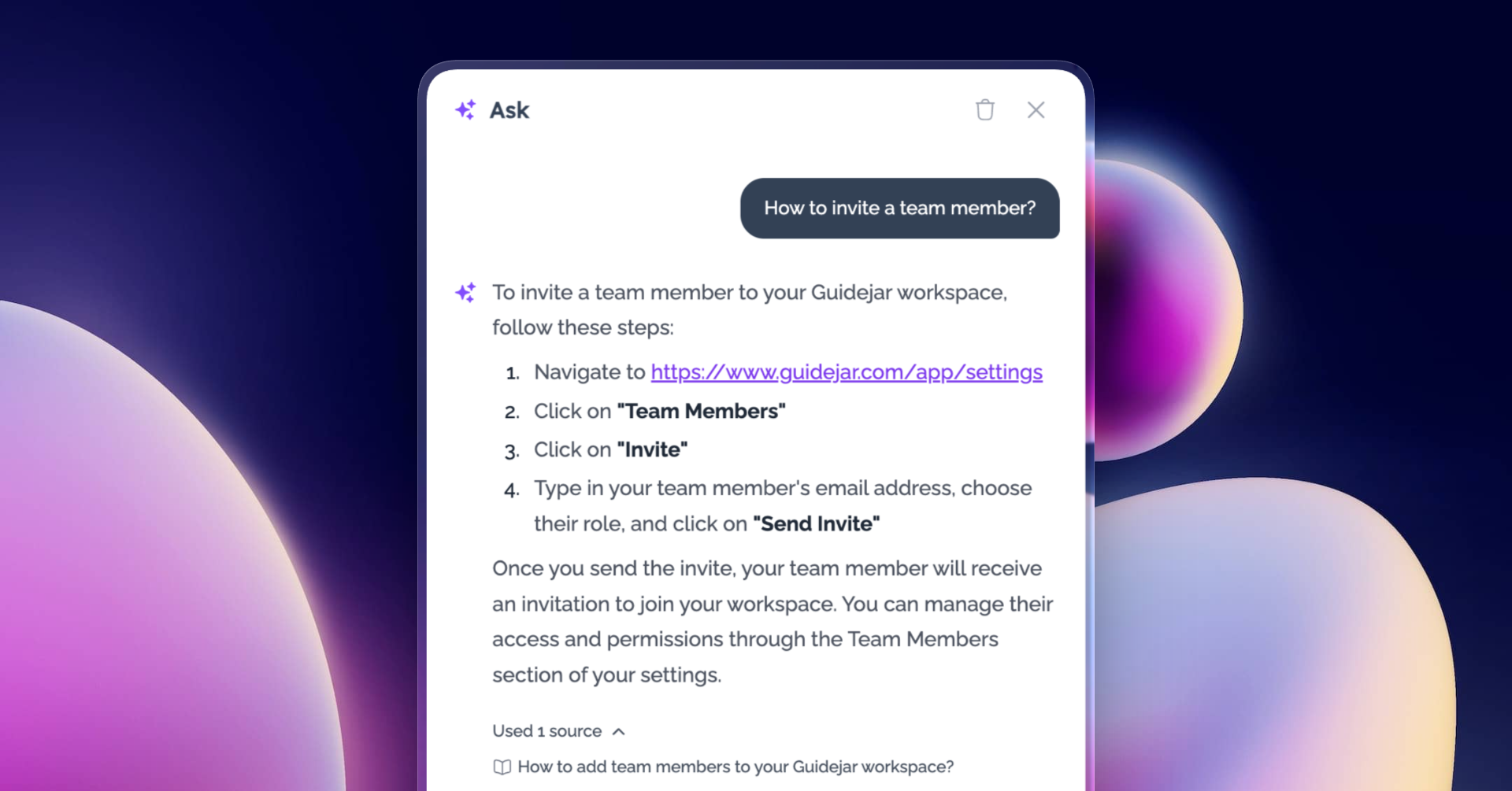
Someone lands on your help center, can't find what they need, and either files a ticket or pings you directly. You've seen this pattern.
It's time for you to turn on 'Ask AI'. Anyone visiting — a customer, a new hire, a teammate — can type a question in plain language and get a direct answer pulled from your published guides and articles.
Whatever you've already published is what powers it. It works best when your content has solid coverage, so answers reflect what you've actually documented.
To enable it, go to your help center configuration and look for the Ask AI section.
Version Control for Screenshots
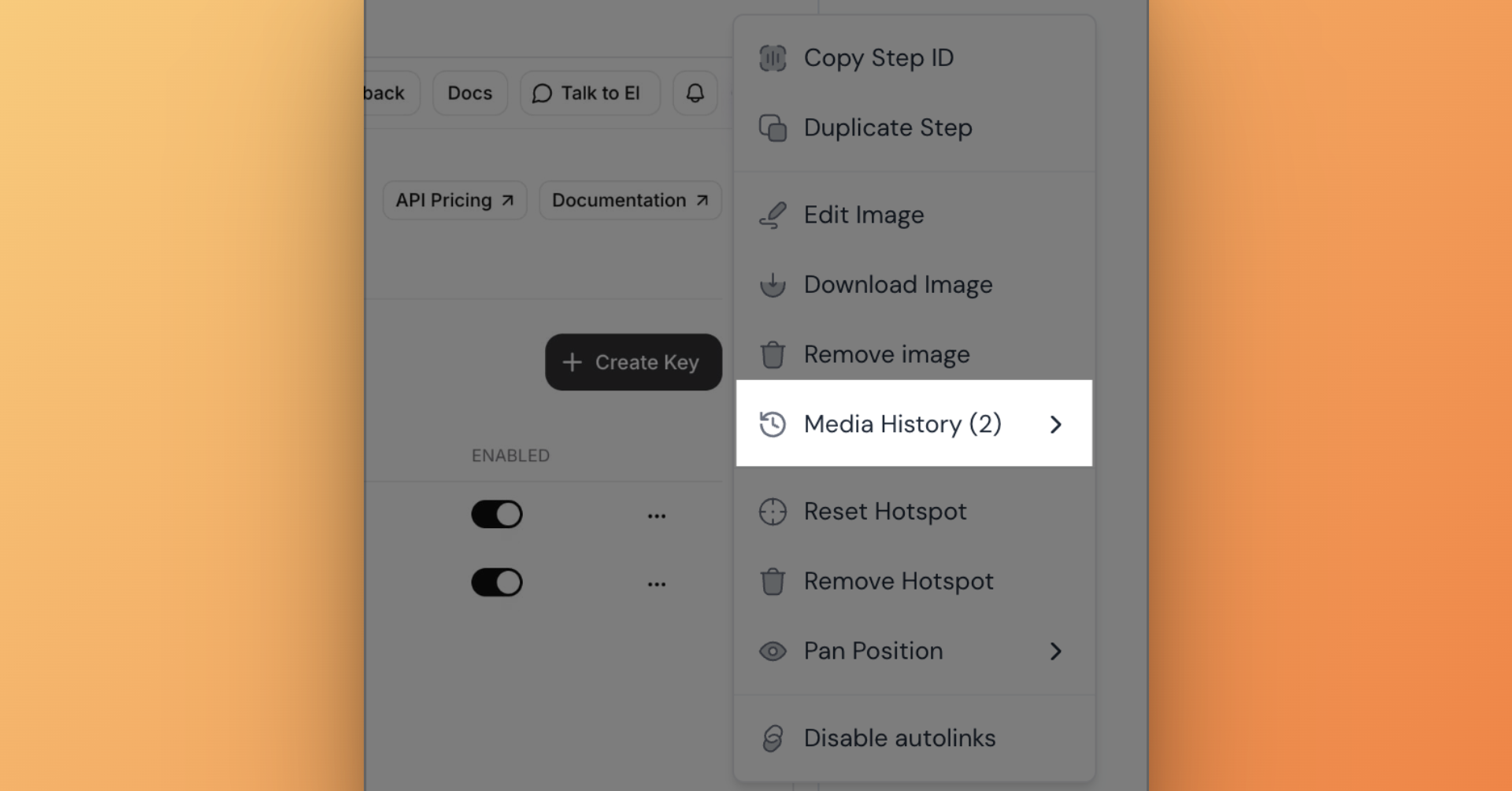
Your screenshots are now protected. Whenever you update a screenshot in a step (whether you edit it or replace it with a new screenshot), Guidejar automatically saves the last 5 versions — so you can always roll back to a previous version if you've made a mistake.
Note: Version history applies to images updated from today onwards. Previously updated images won't have version history available.
Saved Zoom Positions + Drag to Explore
You can now drag and save custom pan positions for zoomed-in images. When a step has a saved pan position, the image automatically centers to that exact area across all views.
Viewers can also click and drag to explore the full image, making it easier to inspect surrounding UI details when needed.